FAQ
OUR MOBILE APPLICATIONS
What is the CMB Mobile app?
The CMB Mobile app makes it possible to consult portfolios directly from a smartphone.
It is protected by a password (or biometrics) and a PIN code.
Compatibility:
-
iOS (iPhone, iPad) - Version 11.0 or later
-
Google Android (smartphones) - Version 5.0 or later

What is the AKARI app?
The Akari app is used to confirm online payments made on merchant sites using a credit card.
It is protected by a PIN code.
Compatibility:
-
iOS (iPhone) - Version 15.0 or later
-
Google Android (smartphones and tablets) - Version 5.0 or later


Help video – First login and access to CMB Online
Video:
CMB Mobile Enrolment - CMB Online Login
CMB Online:
https://cmbonline.cmb.mc/
Before starting your enrollment, please ensure that you have your QR code and temporary password available.
Enrollment instructions:
- Uninstall the CMB Mobile application.
- Reinstall the CMB Mobile application.
- Open the CMB Mobile application.
- Click on "Next" until you reach "Finish."
- Tap on "Register."
- Click on "Scan QR code."
- Scan the QR code received via email.
- Delete the phone name and enter a new one. Failure to do so may cause a technical issue in the application.
- Set up a PIN code.
- Enable Face ID if desired.
- Accept the terms of use.
- Enter the temporary password and click "Next."
- Create a new password with at least 8 characters, including uppercase, lowercase, and one special character.
- Confirm the password and click "Save."
You are now connected to CMB Mobile. Please find below the instructions to log in via a browser:
- CMB Online: Access the platform
- Username: AB123456
- Password: The password you set on CMB Mobile
- Click on Login.
- Validate the login on your CMB Mobile application.
- Tap on the notification.
- Press Confirm.
- Authenticate using Face ID or your PIN code.
- Click Confirm again.
If you encounter any difficulties or require further assistance, please feel free to contact us.
Phone: +377 93 15 51 15
Email: clientsupport@cmb.mc
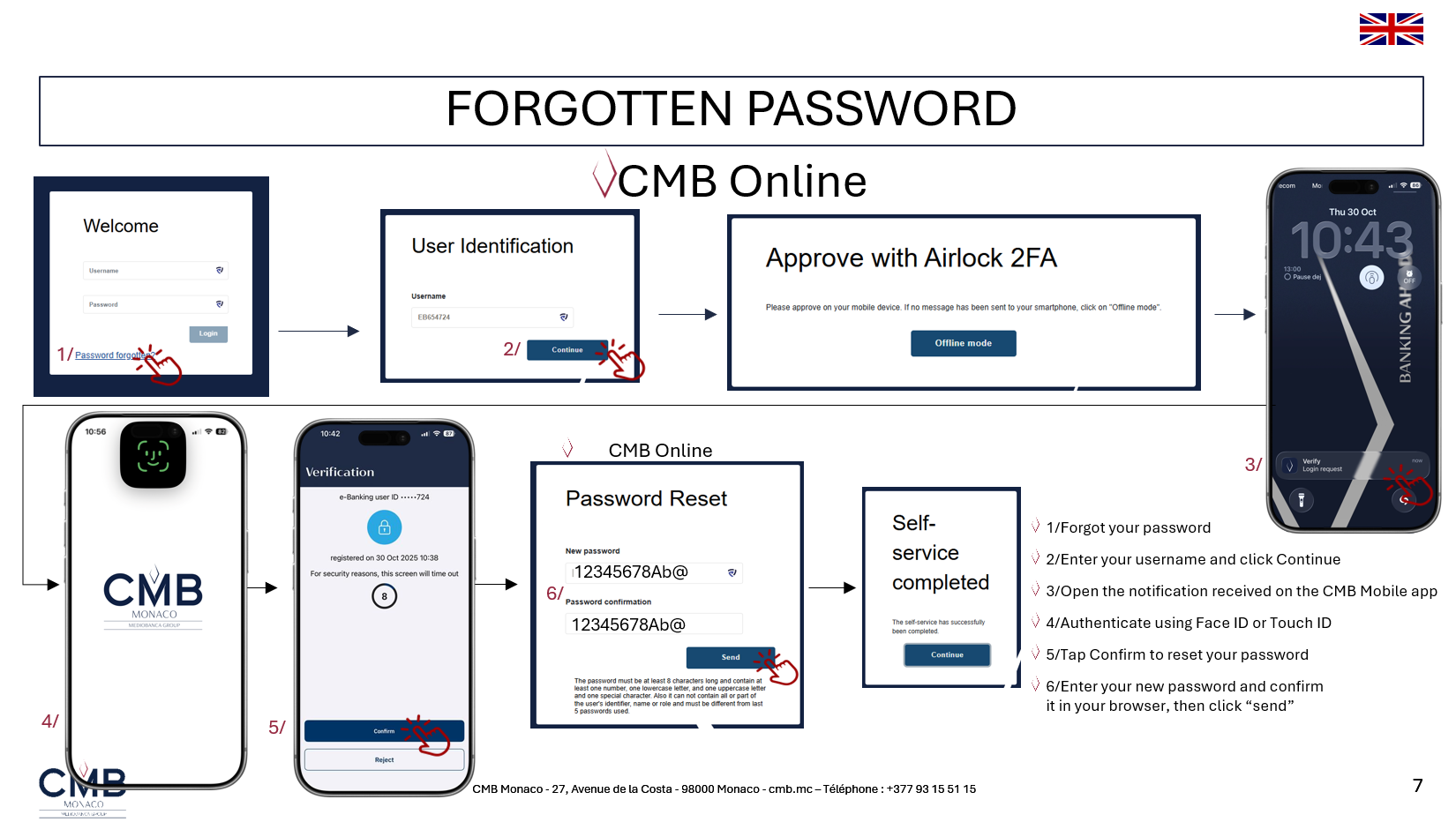
LOGIN
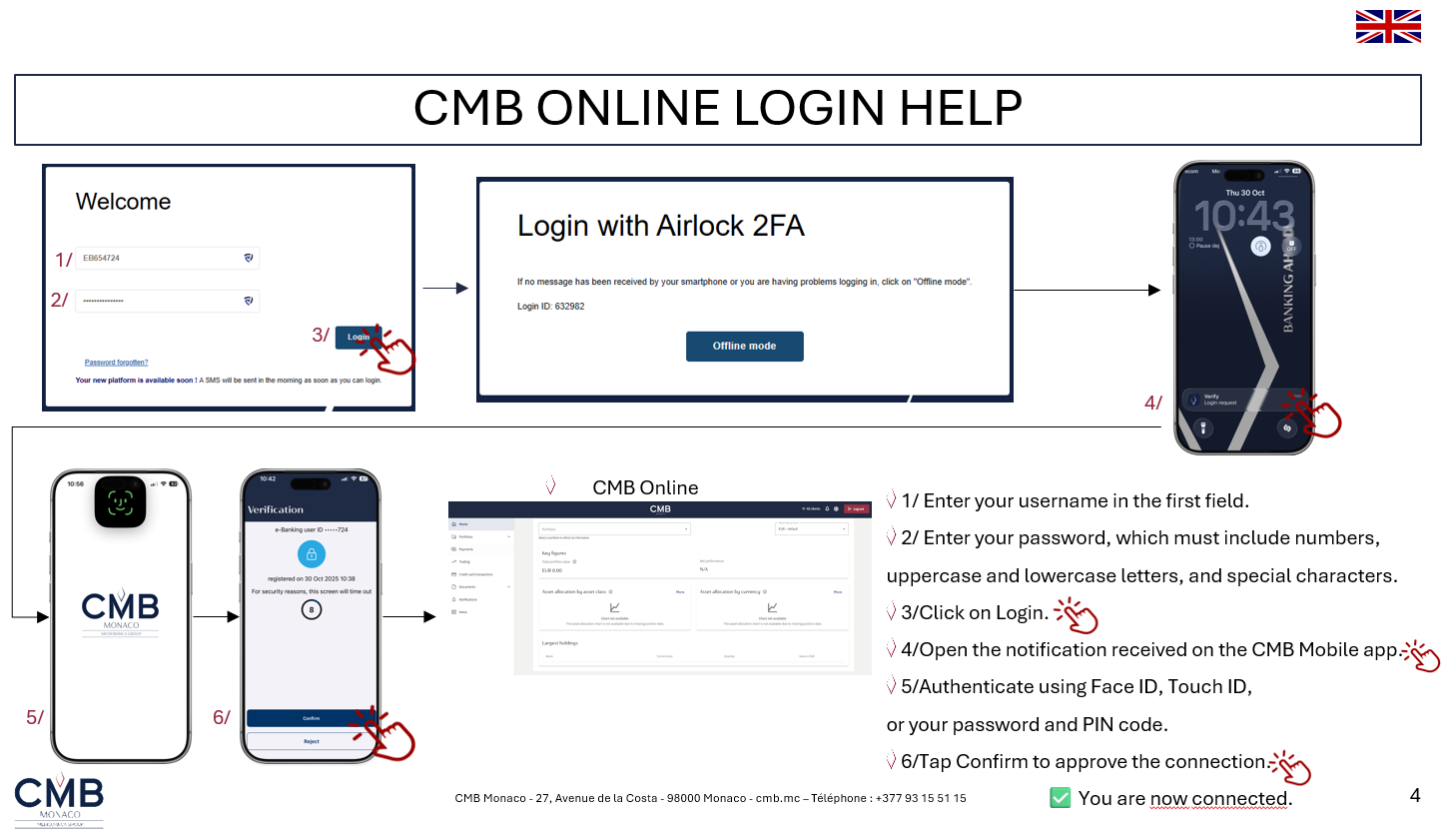
How to connect to CMB Online
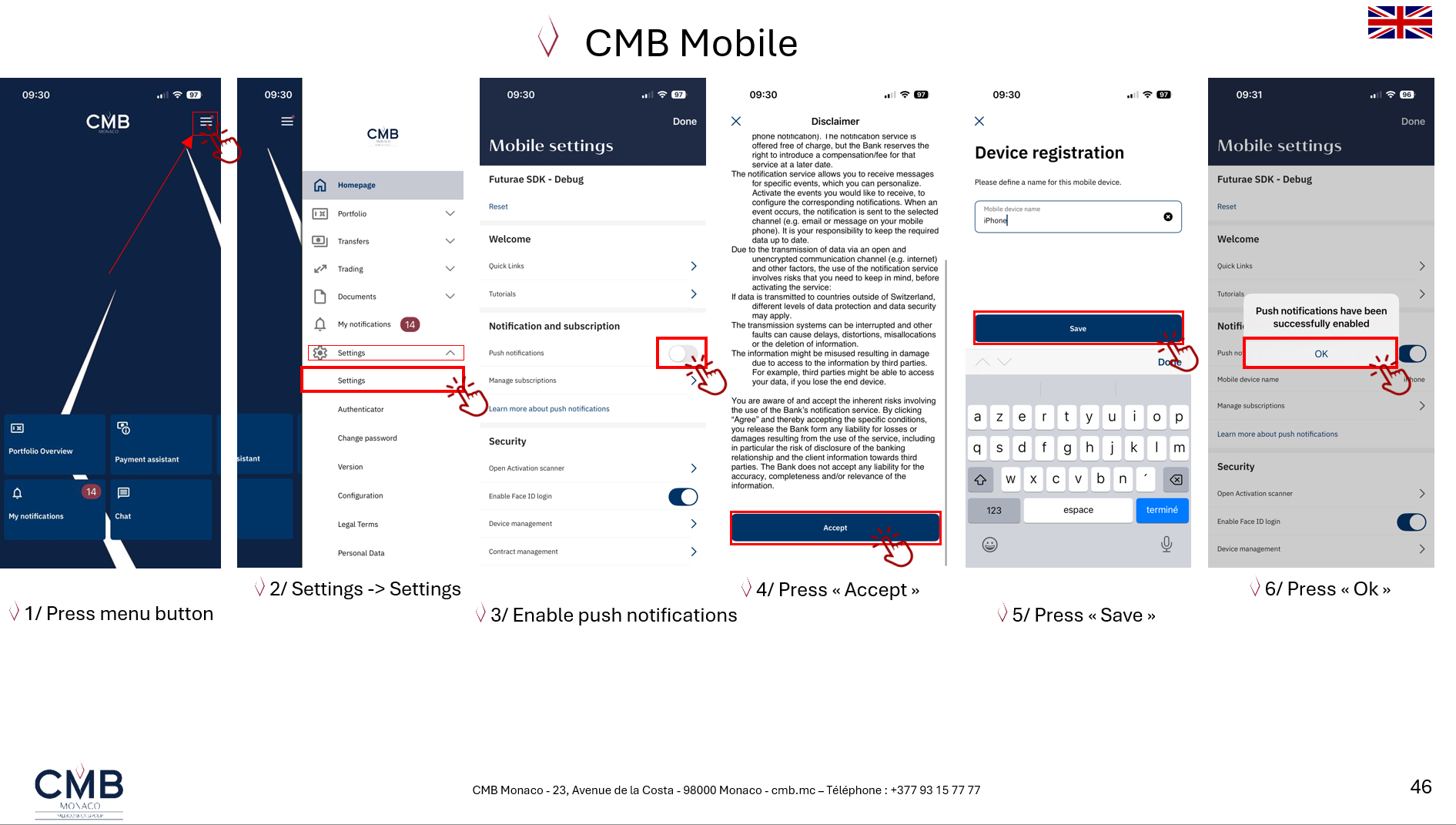
ENABLE THE PUSH NOTIFICATION
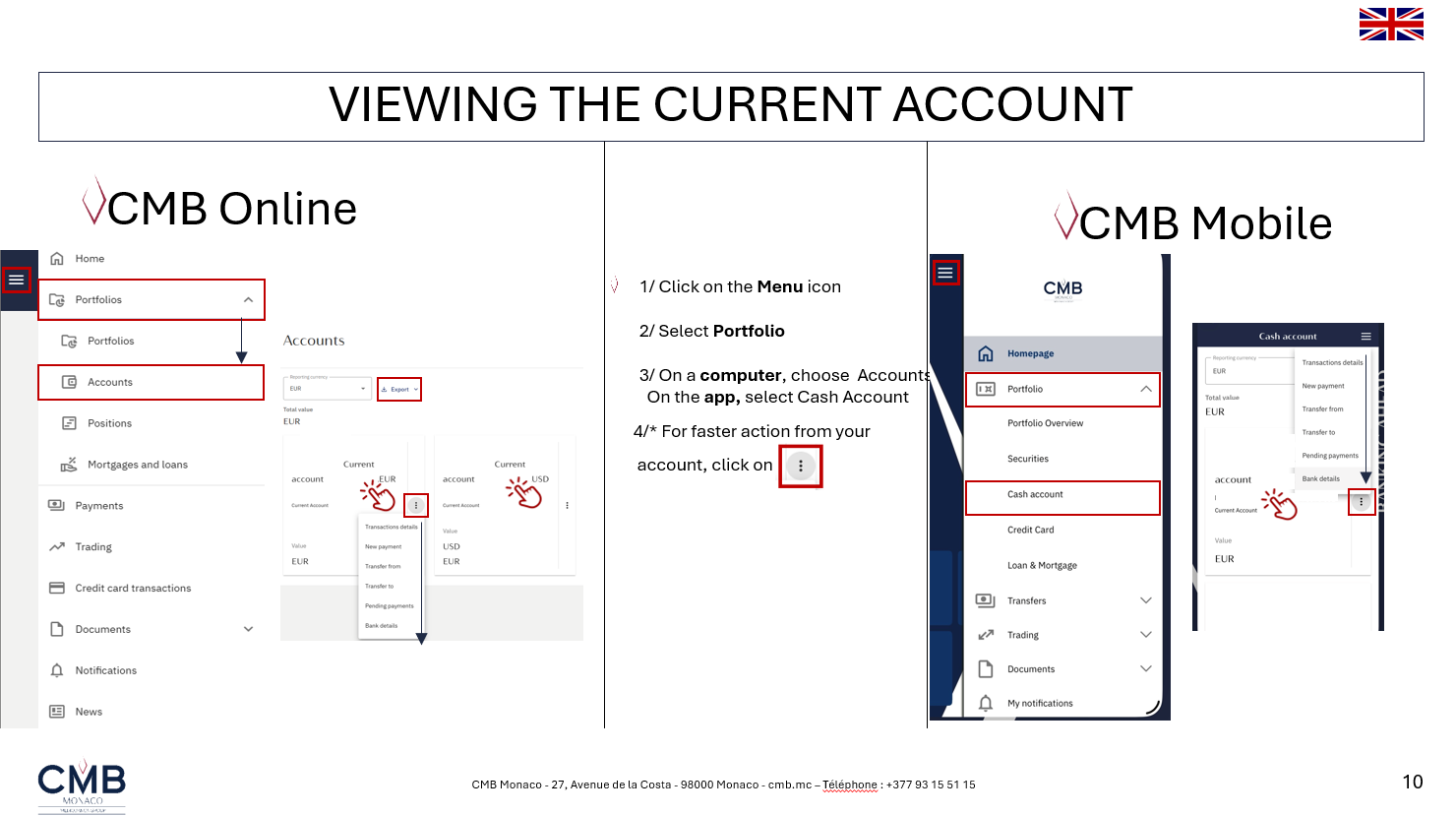
NAVIGATION
PAYMENTS
What are the different types of transfers?
-
Internal transfer: more commonly known as account-to-account transfer.
Allows you to make a transfer between two accounts that you have access to on your eBanking.
- Internal bank payment: This allows you to make a transfer to a beneficiary who is also domiciled at CMB Monaco.
-
SCT (Sepa credit transfer): more commonly known as SEPA.
Allows you to make a transfer in euros within the SEPA zone, which includes the countries of the European Union, plus Norway, Iceland, Liechtenstein, Switzerland, Monaco, Saint-Martin, Andorra and the Vatican.
- Swift (The Society for Worldwide Interbank Financial Telecommunications) enables transfers to be made in both foreign currencies and euros.
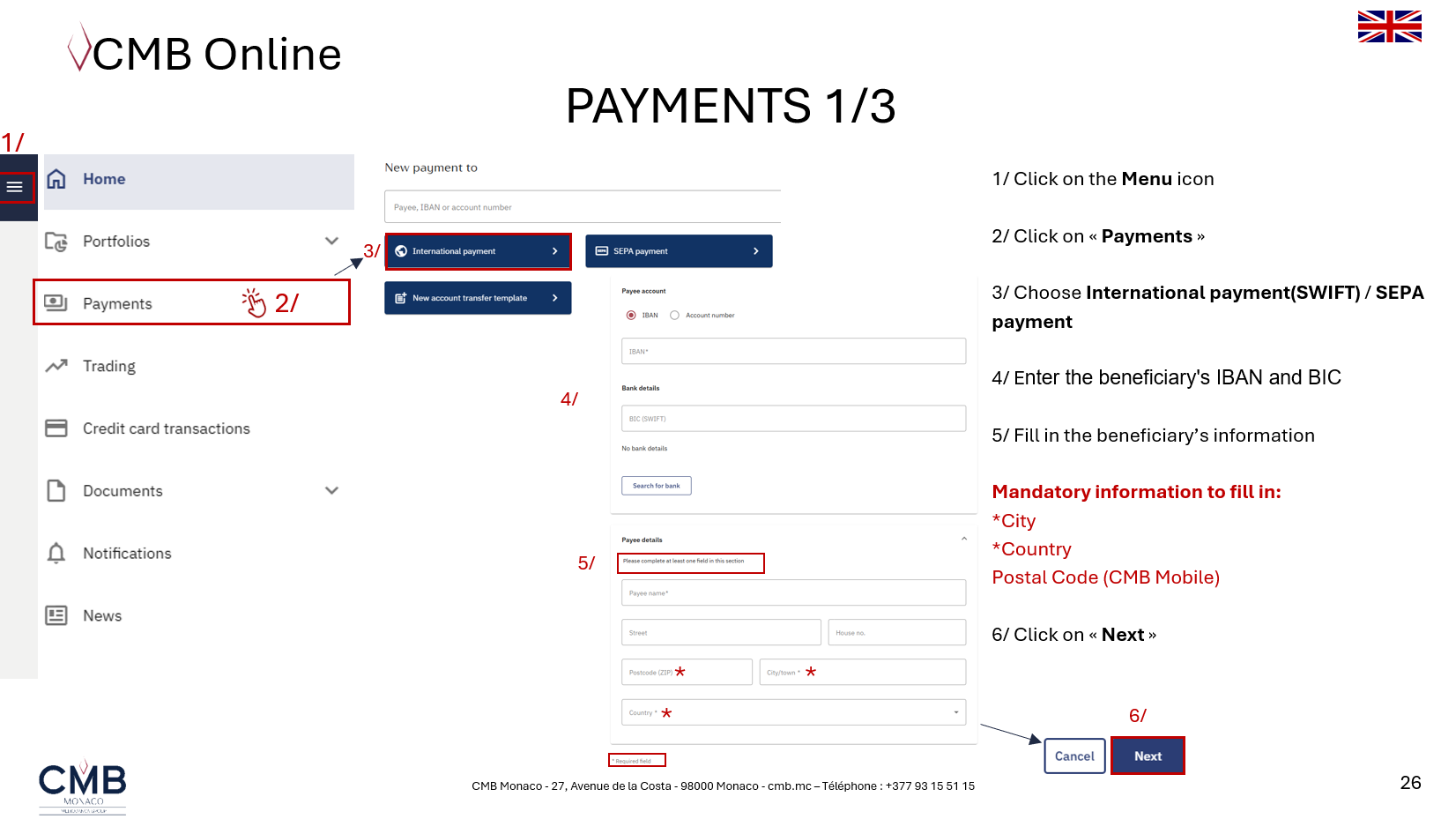
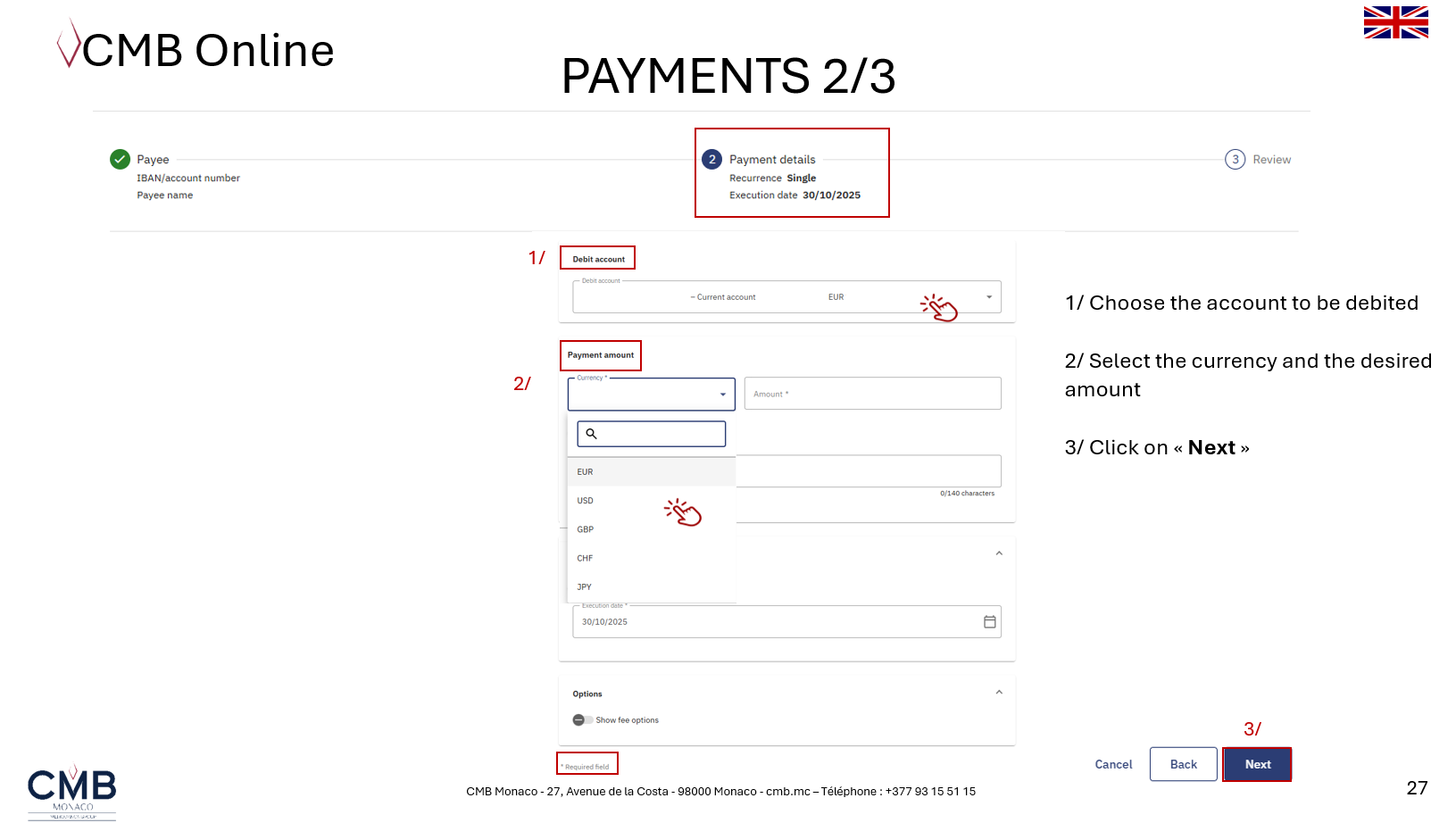
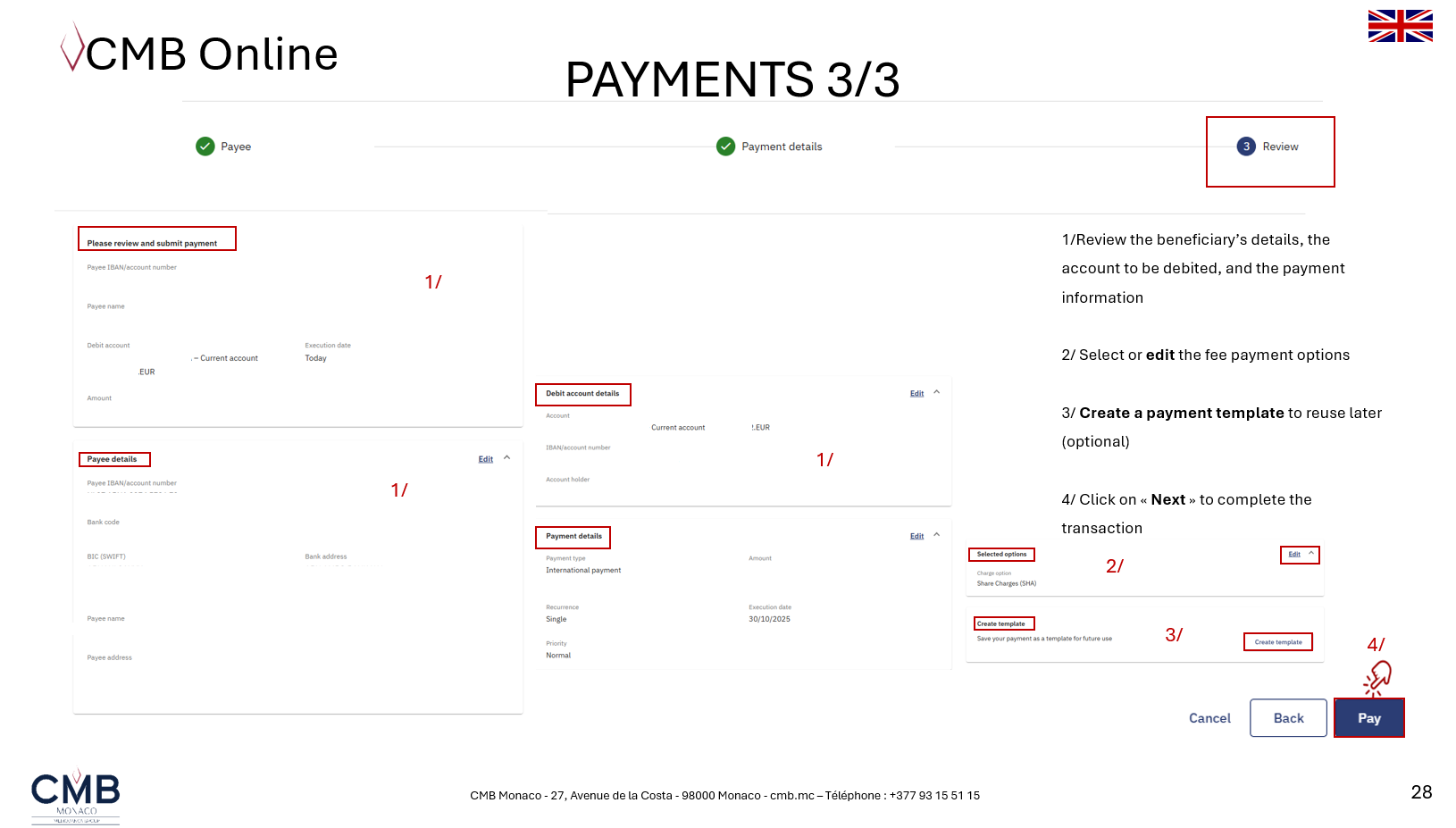
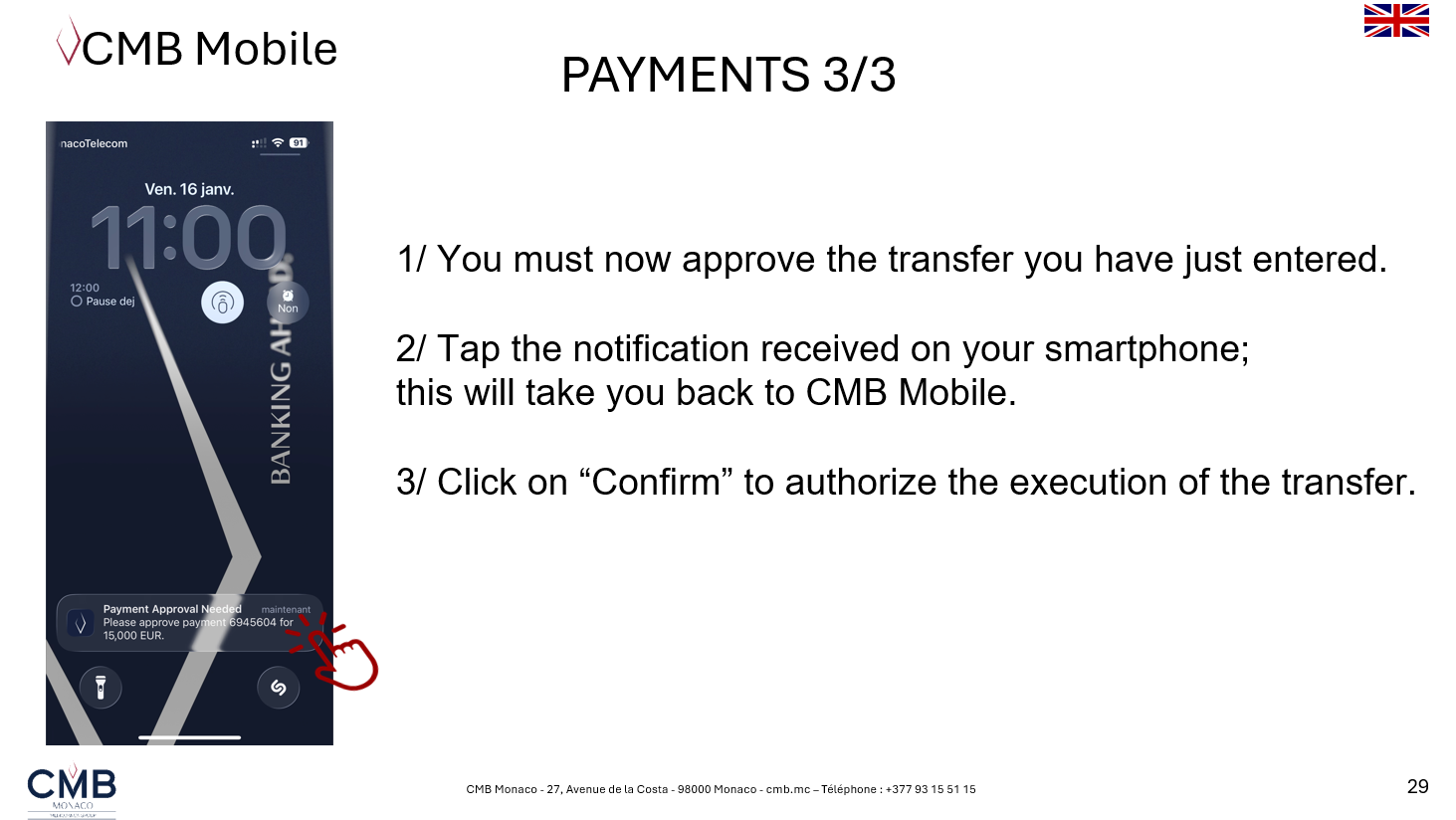
How do I make a transfer ?
DOCUMENTS
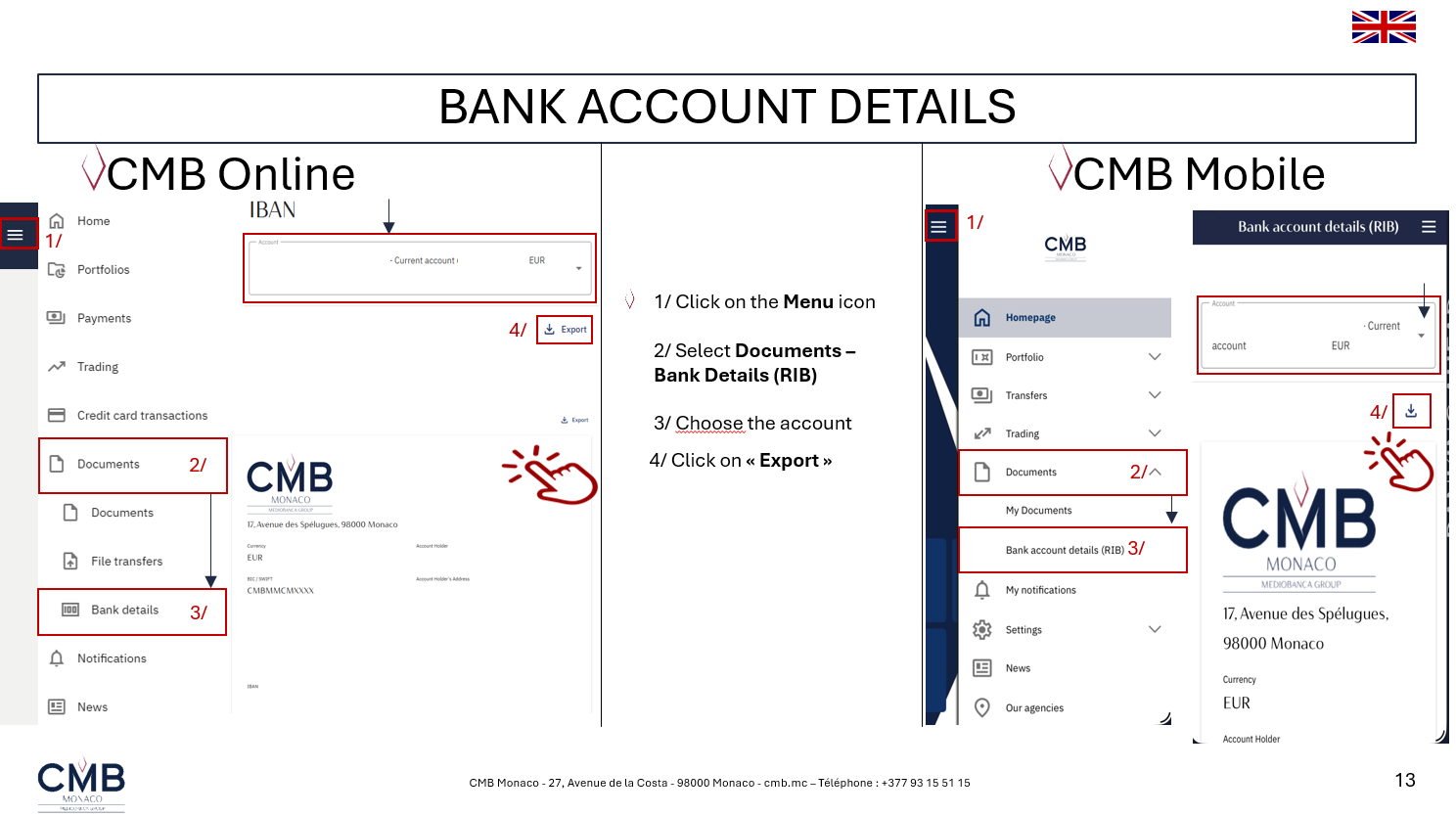
How do I download my bank details ?
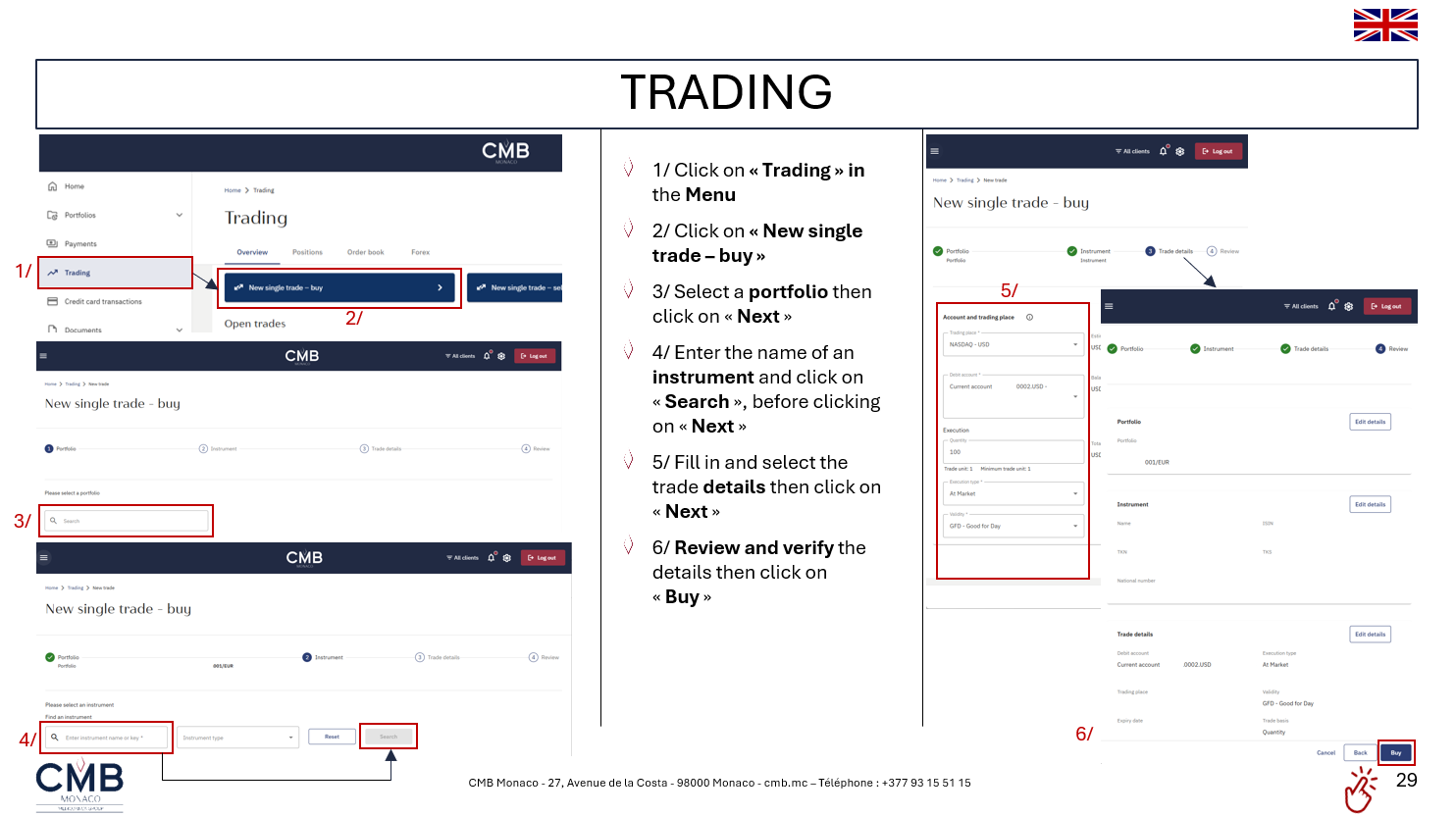
TRADING
CARD
How can I view my credit card transactions ?
You can retrieve details of your credit card transactions from your eBanking access.
To do so, please connect to your CMB Online or CMB Mobile space and follow the steps below:
CMB Online:
In the menu, select "Credit Card"
CMB Mobile:
In the "Portfolio" menu, select "Credit Card"
Please note that no statement will be issued if there are no transactions during the month.
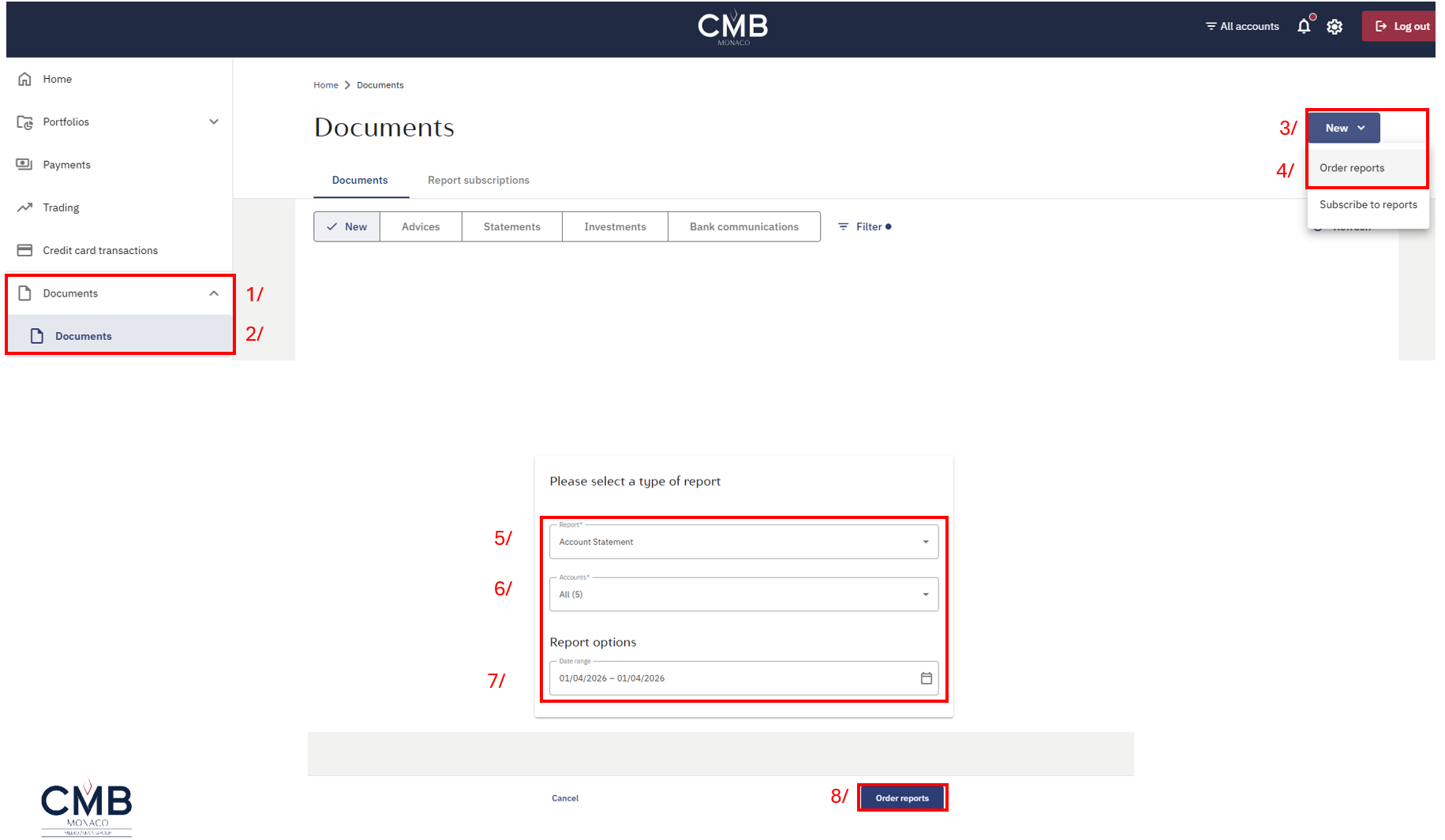
Portfolio & Account Statement
To obtain a detailed account statement of transactions up to the previous day, please follow these steps:
1. Navigate to the "Documents" tab.
2. Select the "Documents" section.
3. Click on "New".
4. Order a report by selecting “Portfolio or Account Statement".
5. Choose account statement.
6. Choose the portfolio for which you wish to obtain the statement.
7. Select the desired report date.
8. Finally, click on "Order Reports".
Please wait 5 to 10 minutes for the document to be generated; you will then find it in your eDocuments.
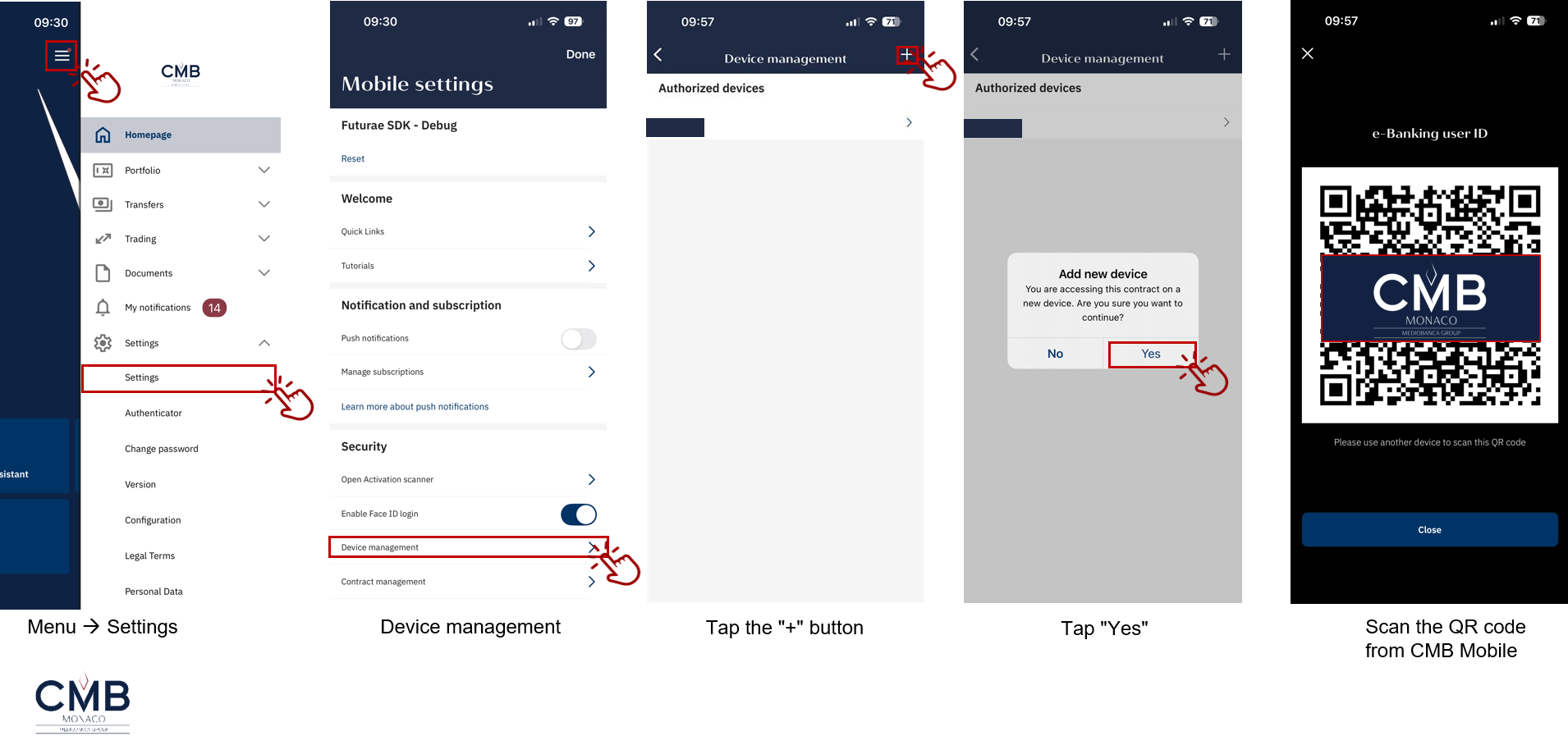
Generate a QR Code via CMB Mobile
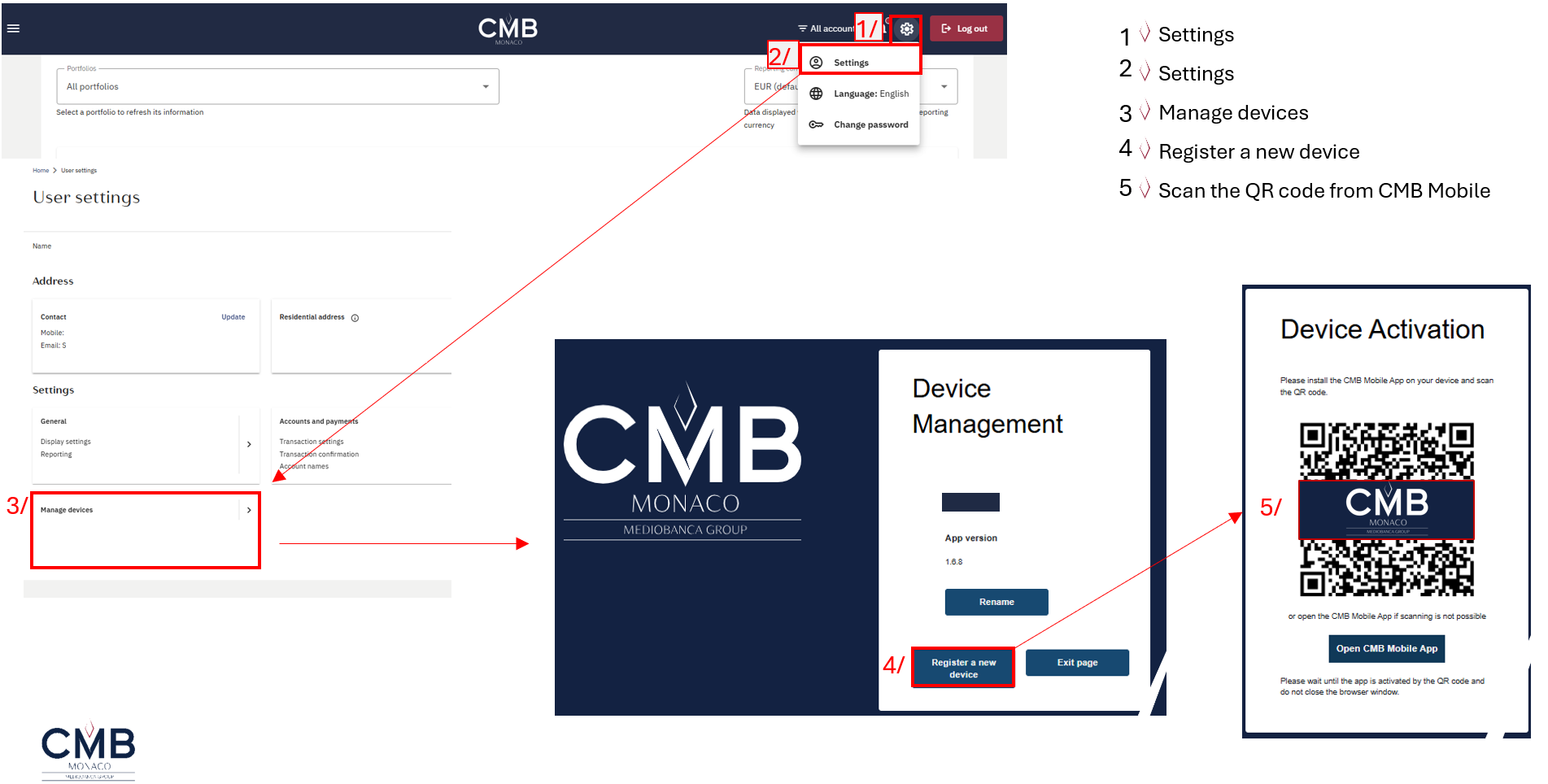
Generate a QR Code via CMB Online
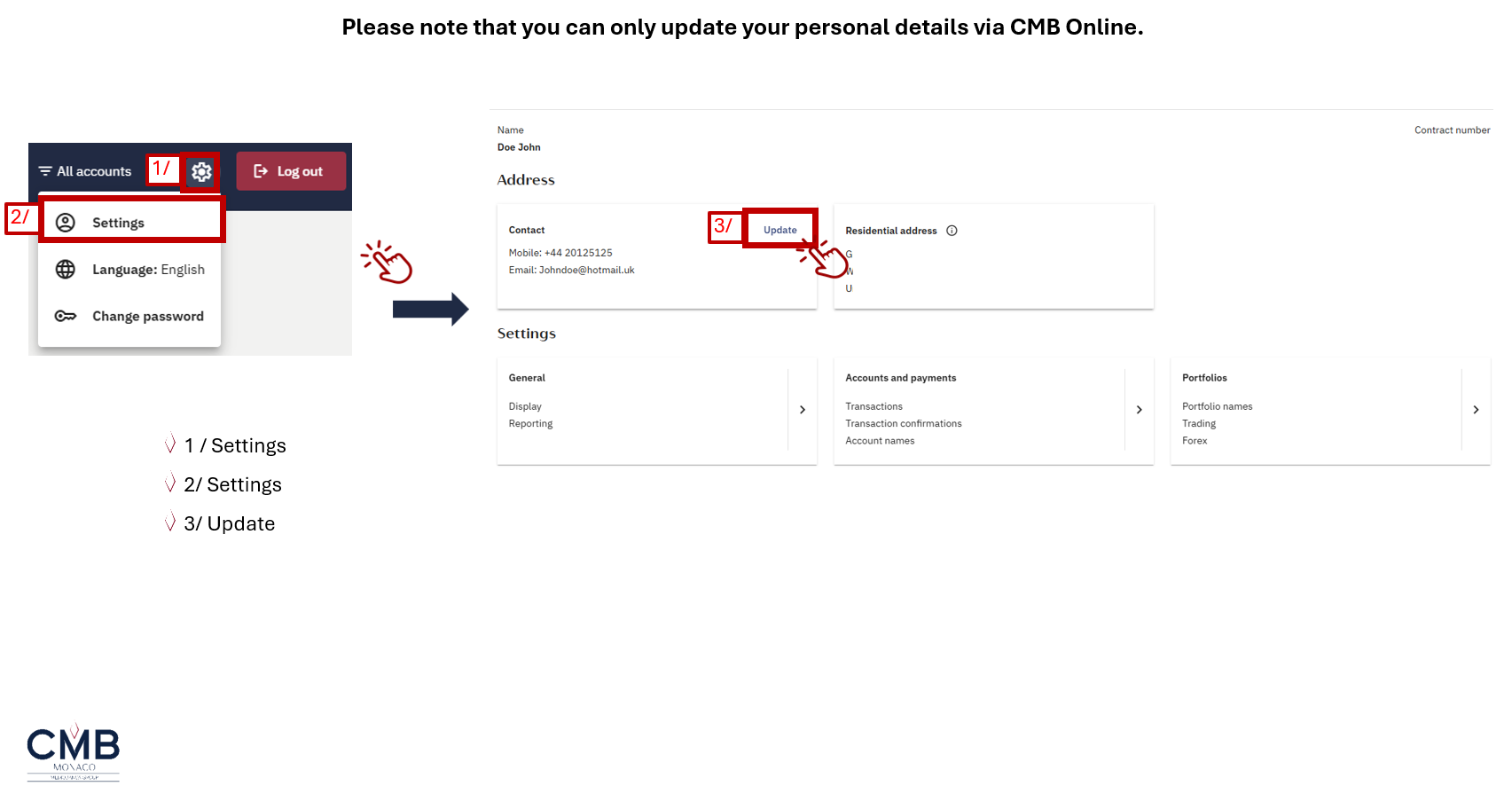
Update your contact details
Forex
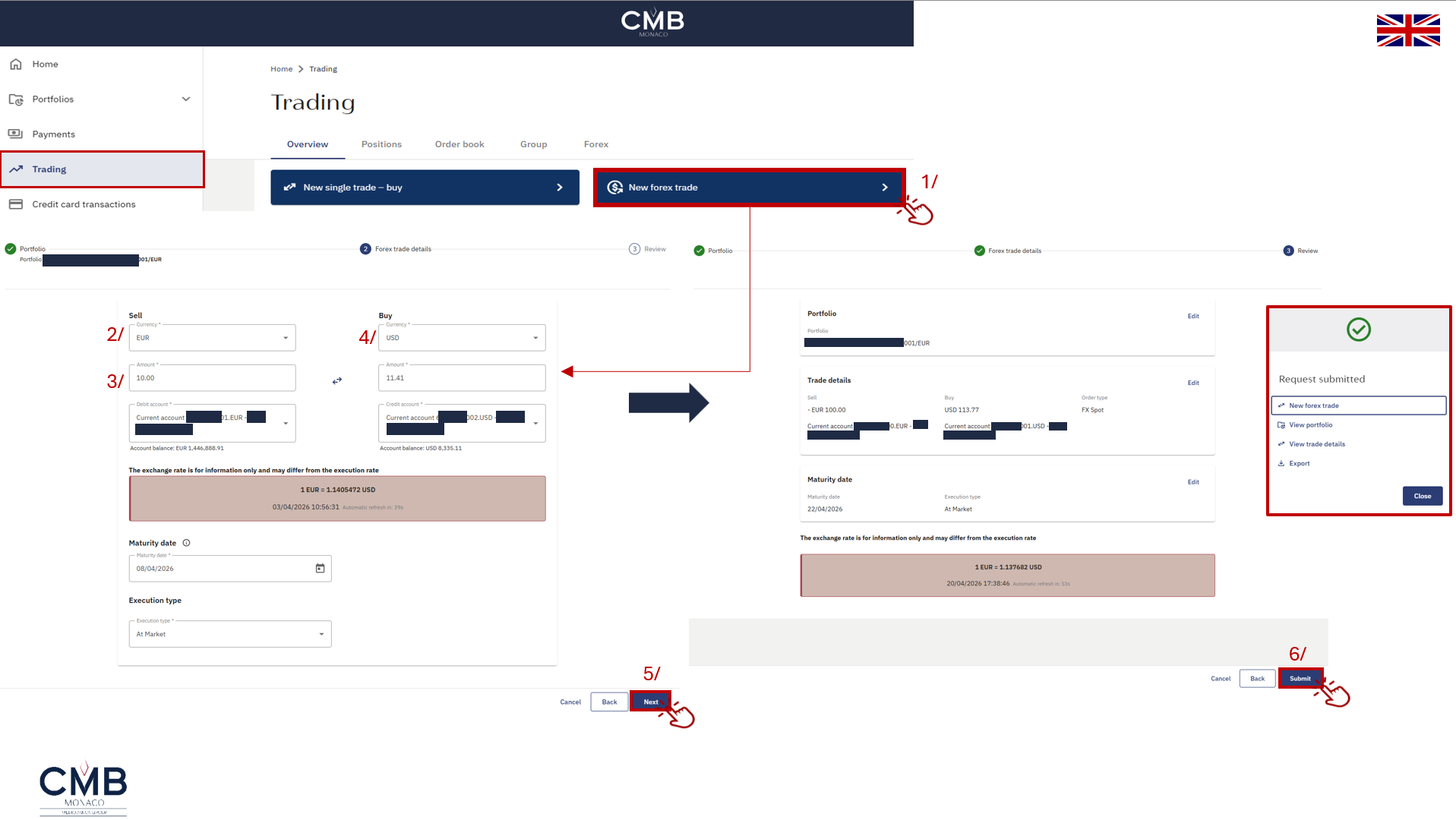
When accessing the Trading section, you can perform a foreign exchange (Forex) transaction:
- Click on “New FX transaction”
- Select the currency you wish to sell
- Enter the amount to be sold
- Choose the currency you wish to buy (you must hold an account in this currency)
- Click “Next”
- After reviewing the details (amount and currencies), click “Submit” to confirm the transaction
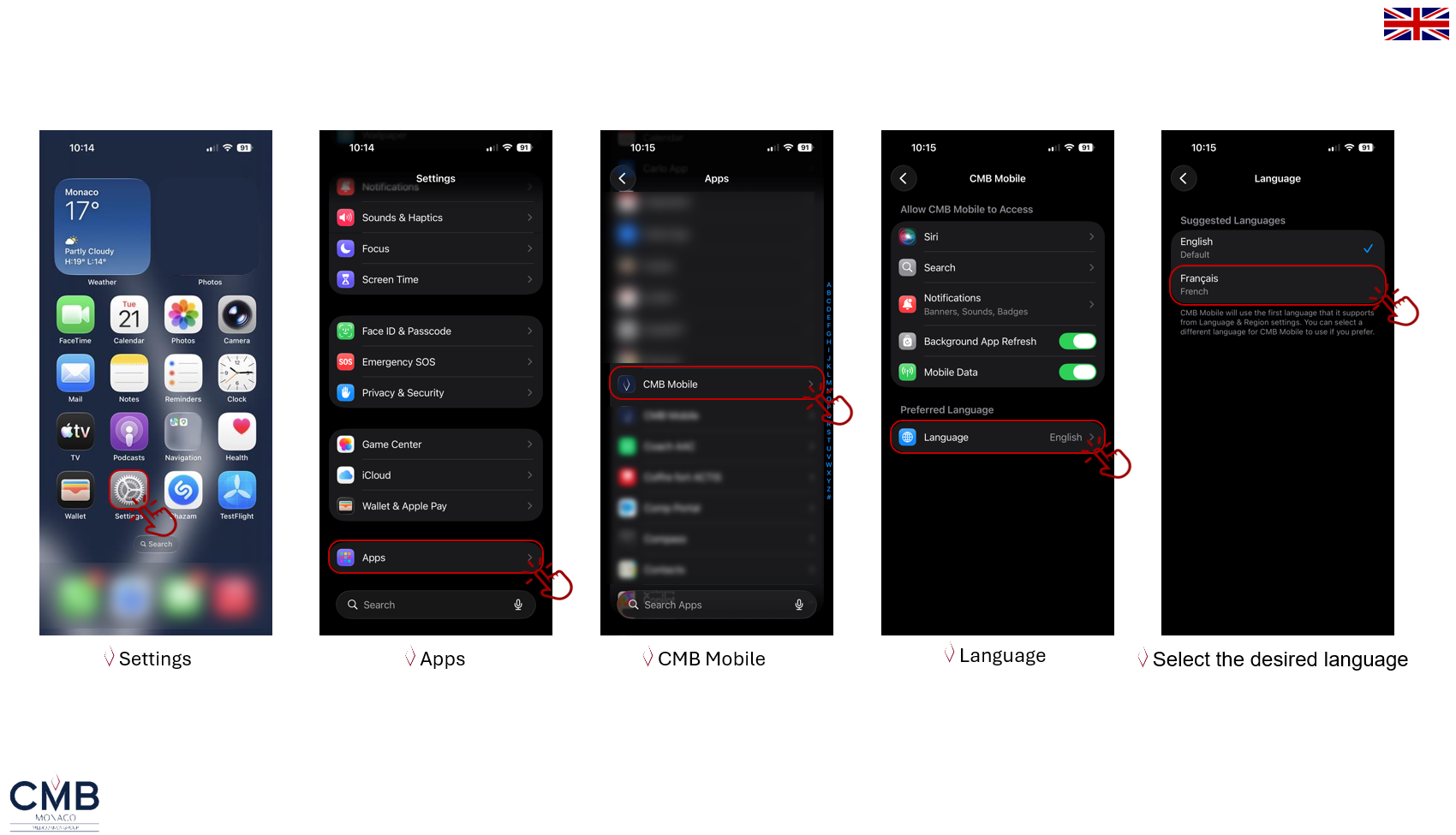
Language change – CMB Mobile
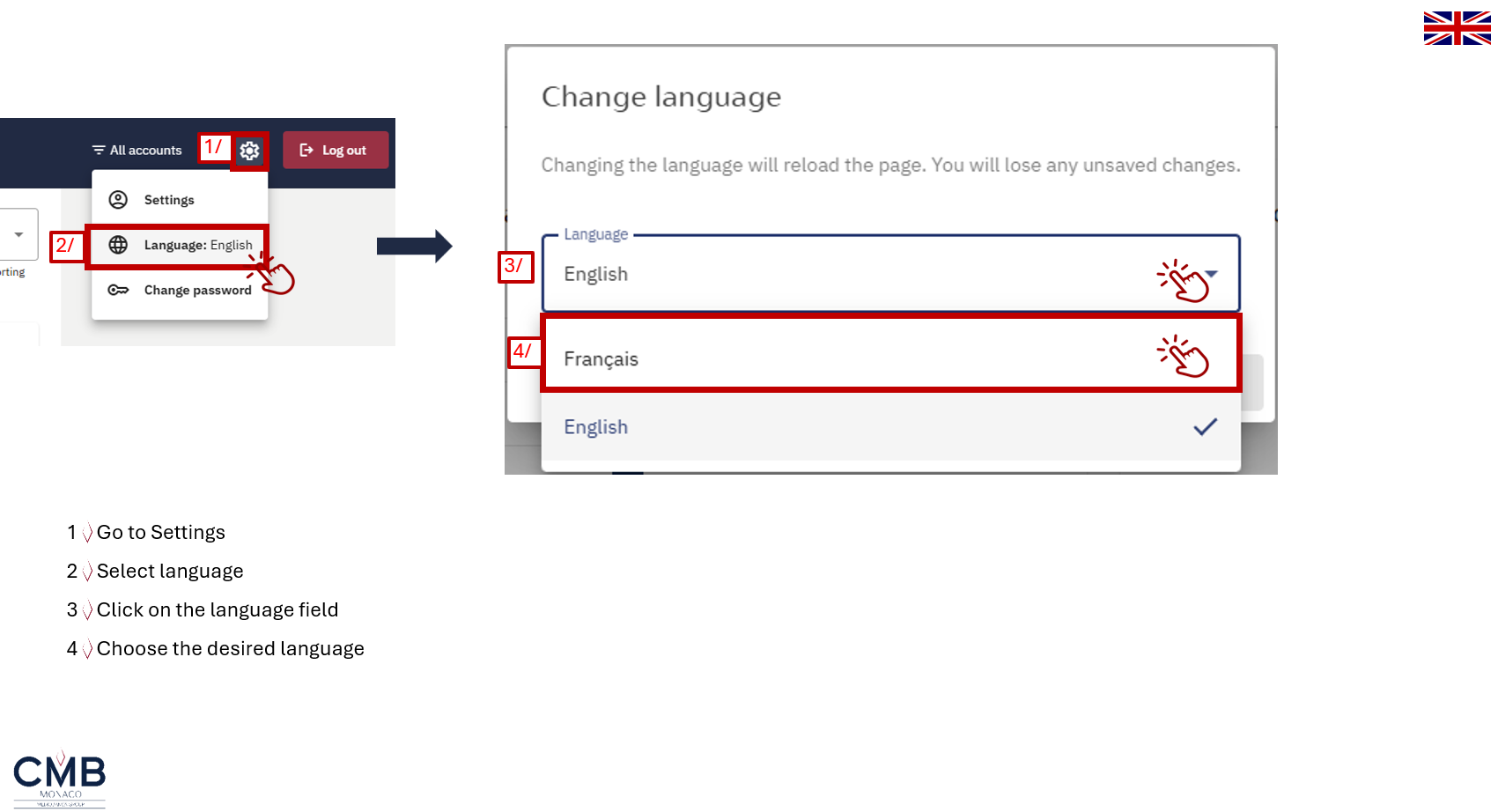
Language change – CMB Online
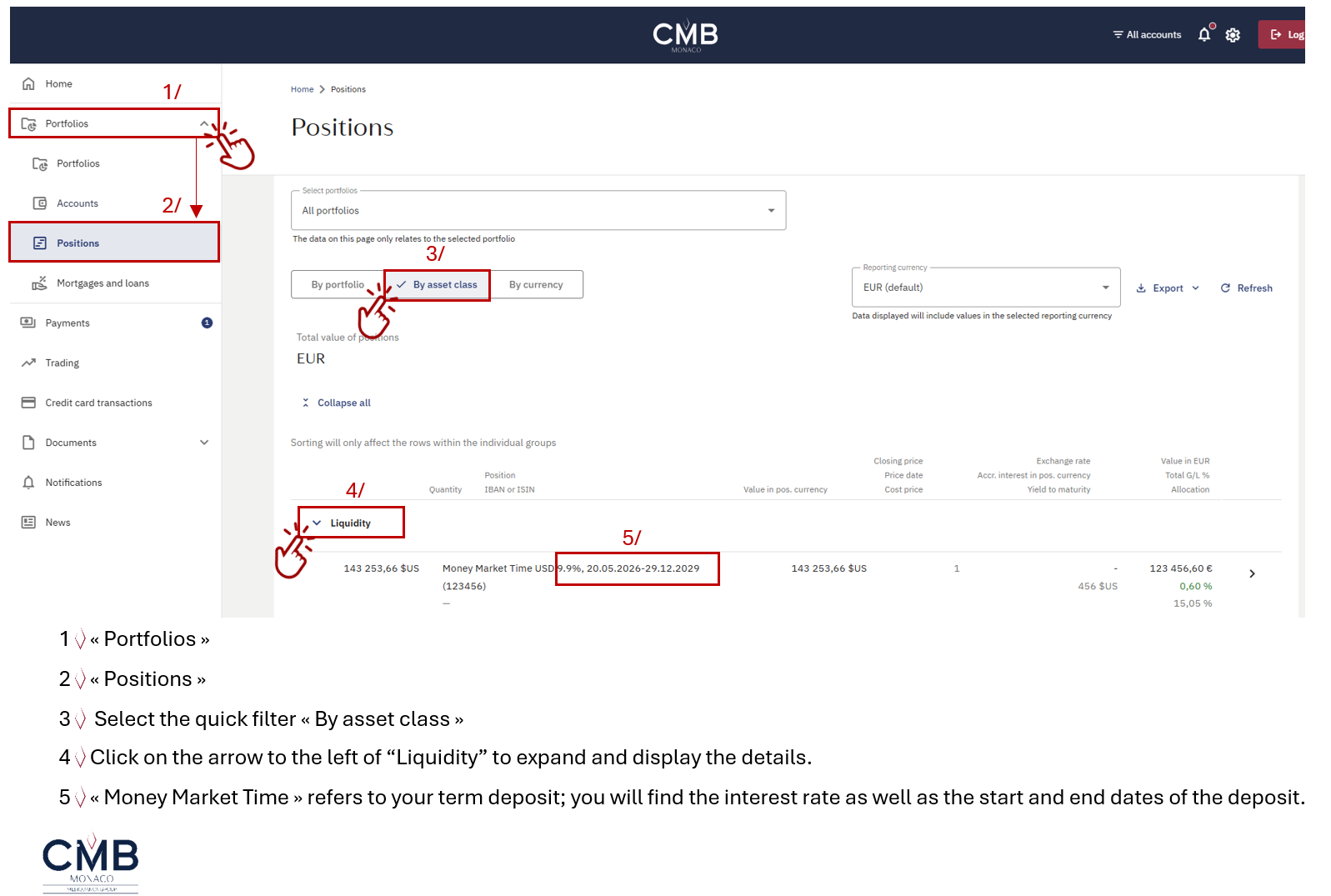
Term Deposit